How to Generate Your First Travel Route with Itinerak
Once the Itinerak Planner is added to your WordPress site, generating your first travel route takes only a few clicks.
You choose a destination, select the type of trip you want, decide how much time you have, and Itinerak builds a structured itinerary for your journey.
This guide will walk you through generating your first travel route and show you how to explore the itinerary and tools available after your route is created.
Open the Itinerak Planner
Open the page where you added the Itinerak Planner on your WordPress site. The planner gives you everything you need to create a travel route from one simple interface.
Before generating a route, you will make four choices: country, city, trip type, and trip duration. These selections tell Itinerak what kind of itinerary to build for you.

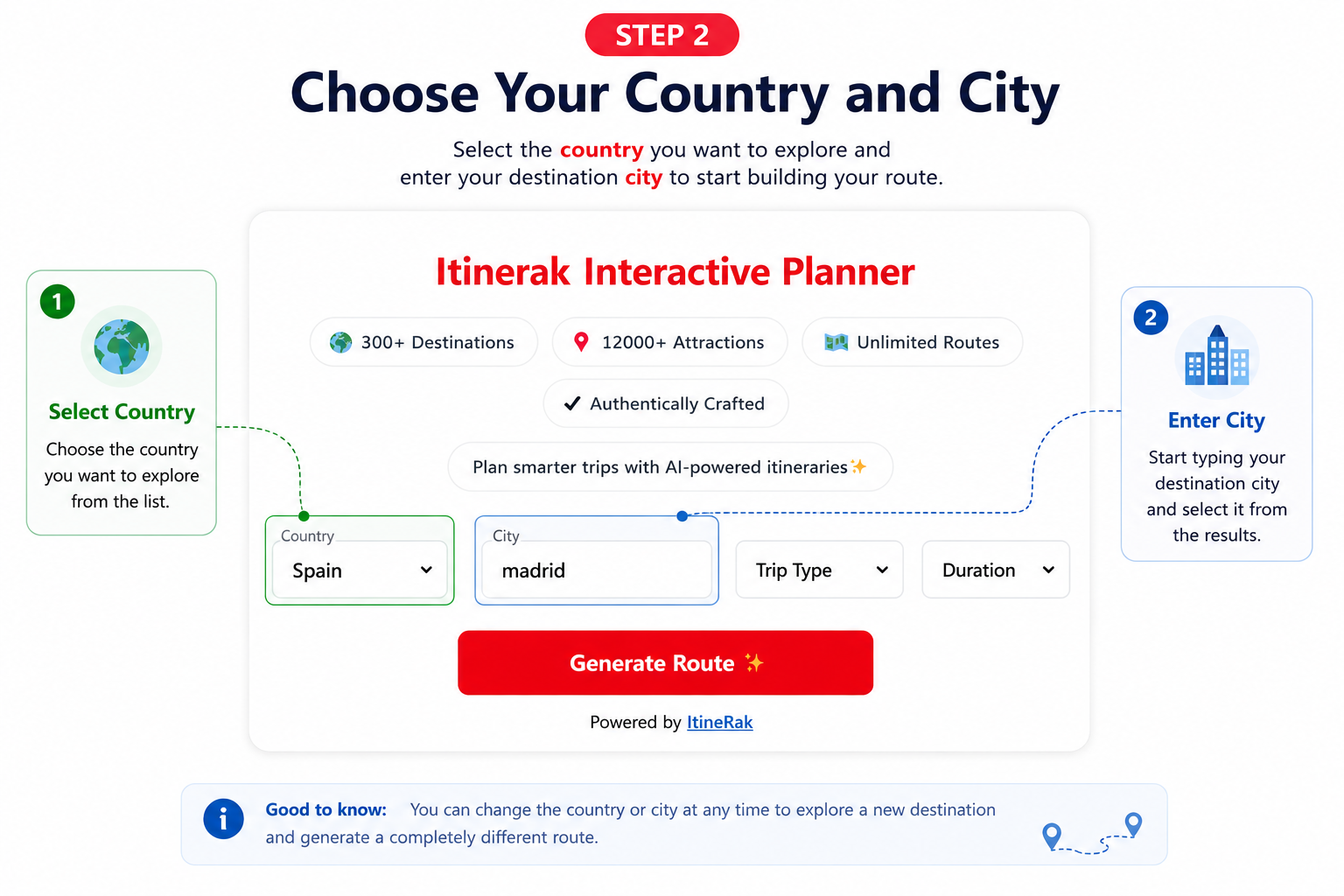
Choose Your Country and City
Start by selecting the country you want to explore. This helps Itinerak narrow down the destinations available for your trip.
Next, enter the name of your city and select the destination you want to visit. Your country and city together define where Itinerak will build your travel route.
Choose Your Trip Type
Next, choose the Trip Type that best matches how you want to experience the destination. Itinerak uses this selection to shape the places and experiences included in your route.
You can choose from Classic, Culture, Food, Family, Luxury, or Manual Route. The first five options let Itinerak build an itinerary around your preferred travel style, while Manual Route gives you access to a professionally curated itinerary created specifically for the destination.

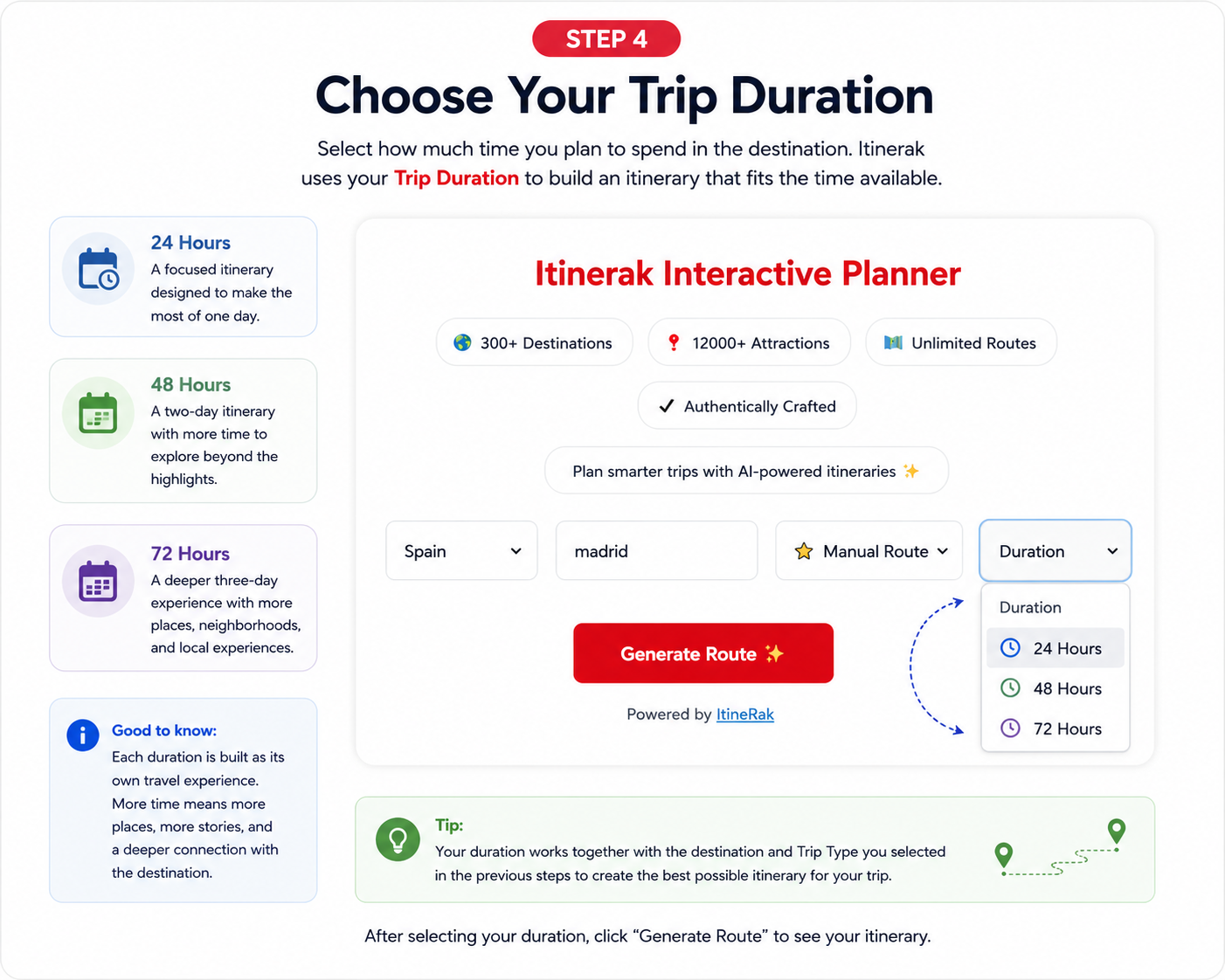
Choose Your Trip Duration
Select how much time you plan to spend in the destination. Itinerak uses your Trip Duration to build an itinerary that fits the time available for your visit.
Open the Duration menu and choose the option that matches your trip. Your duration works together with the destination and Trip Type you selected in the previous steps.
Generate Your Travel Route
Once your country, city, Trip Type, and duration are selected, you are ready to create your itinerary.
Review your selections, then click the Generate Route button. Itinerak will use your choices to build a complete travel route for the destination.

Explore Your Generated Itinerary
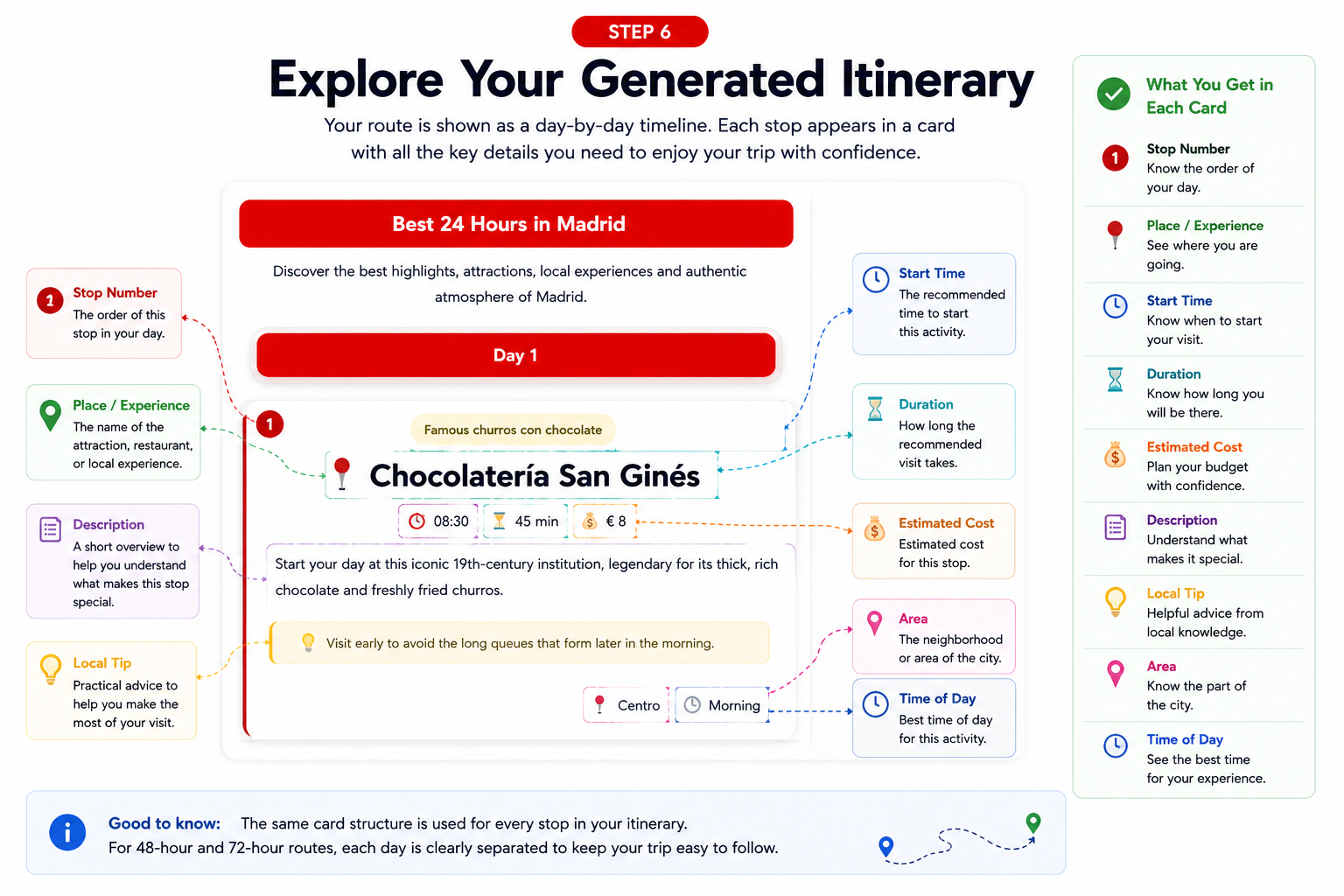
After your route is generated, Itinerak displays your complete itinerary as a clear day-by-day timeline. Each place or experience appears in its own card, making the route easy to follow from the beginning of the day to the end.
Each itinerary card gives you the key information you need at a glance, including the place, start time, visit duration, estimated cost, and a short description of the experience. You may also find a practical tip, area information, and the recommended time of day.
Your First Itinerak Route Is Ready
You have now created your first travel route with Itinerak. You selected a destination, chose the travel experience and duration, generated your itinerary, and learned how to read the information included in each route card.
This is only the beginning. Itinerak also includes additional tools and features designed to help you explore, use, and manage your travel routes more effectively.